Let Claude, ChatGPT, or Cursor work with your Birkly content. Birkly provides two kinds of AI agent:
Open Settings → AI (
?page=settings&tab=ai) — the home for AI app connections (Birkly MCP). See Agent Guide. This is different from website tools (WebMCP) — Agent Guide → Tools — which controls what an AI helper can do on your public site, not what connects to your CMS. See Website tools (WebMCP).
- Personal connector — one per site; every team member uses the same URL but signs in with their own account and gets their permissions.
- Service agent — optional shared bots with a fixed role (e.g. always editor); admins control who can see and connect.
Copy a Connector URL (ends with /mcp), paste it in your AI app, and sign in when prompted. Leave Client ID and Client Secret empty — OAuth happens automatically.
Built-in admin chat (API key) is separate — see Built-in assistant.
Open Settings → AI.
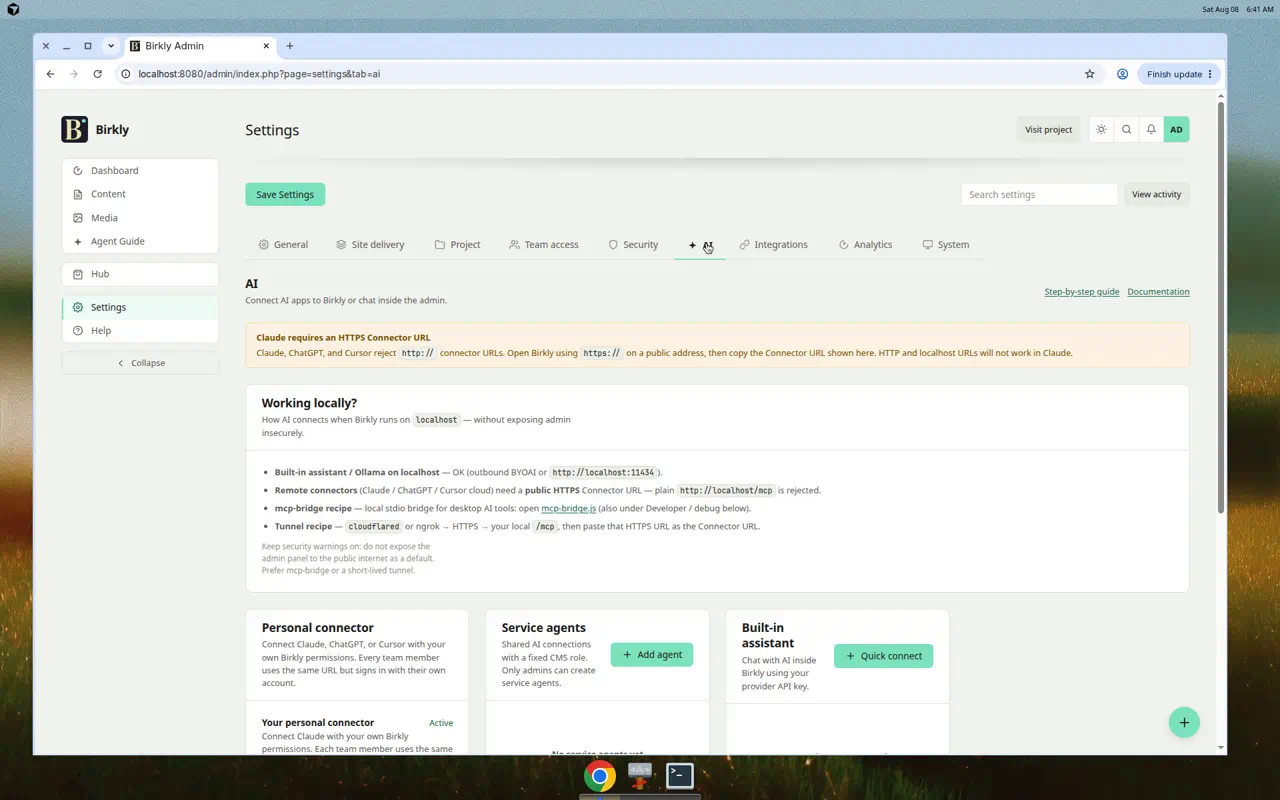
- Most users: copy the personal connector URL, paste it in your AI app, and sign in with your Birkly account.
- Admins: you can also create service agents with a fixed role and choose who may use them.
- Write actions are approved in your AI app — not in the Birkly Approvals tab (that tab is for the built-in assistant only).
Quick start (personal connector)
- Settings → AI.
- Under Your personal connector, click Show Connector URL and copy the URL (HTTPS, ends with
/mcp). - In your AI app:
- Claude: Settings → Connectors → Add connector → paste URL only (leave OAuth fields empty) - ChatGPT: Settings → Connectors → paste URL only - Cursor: Settings → MCP / Connectors → paste URL only
- Sign in with your Birkly account when your app asks.
- On the consent screen, confirm you are connecting with your role and permissions.
The same URL works for everyone on your team — each person signs in separately.
Quick start (service agent)
For admins who need a shared automation identity (e.g. “content bot always acts as editor”):
- Settings → AI → Add service agent.
- Name the agent, optionally add a description, choose a fixed role, and set Who can use this agent (roles and/or specific users).
- Copy that agent’s Connector URL and paste it in your AI app (same steps as above).
- Sign in and approve the connection. The consent screen shows the agent name and its fixed role.
Non-admins only see service agents assigned to them — see Who can use a service agent.
Personal vs service agents
| Personal connector | Service agent | |
|---|---|---|
| Purpose | Connect Claude with your Birkly access | Shared bot with a fixed role |
| Count | One per site (auto-created) | Zero or more (admin-created) |
| Connector URL | One URL for the whole team | One URL per service agent |
| Permissions | Authorizing user’s real CMS role and permissions | Fixed role set at create time |
| Who can connect | Anyone with admin-panel access | Admins see all; others only if assigned |
| Who manages it | Admins can disable/enable; cannot delete | Admins create, edit visibility, remove |
When to use which
- Personal connector — default for most people. An editor’s Claude gets editor access; a viewer’s gets viewer access.
- Service agent — when you need a named, shared identity (e.g. a dedicated “Publishing assistant” that always runs as editor) and want to control exactly who may authorize it.
Who can use a service agent
Admins configure visibility when creating or editing a service agent:
- Visible to roles — e.g.
editormeans every user with the Editor role can see the agent in Settings and may connect via OAuth. - Allowed users — explicit user assignments (in addition to or instead of role-based visibility).
Listing rules
| User | What they see |
|---|---|
| Admin | All service agents |
| Editor / Viewer / other | Only service agents where their role is in Visible to roles or their user is in Allowed users |
| No admin-panel access | Nothing (personal connector and service agents are hidden) |
If you need a service agent but do not see it, ask an admin to add your role or user under Who can use this agent.
Roles and approvals
Personal connector
Access matches the authorizing user’s CMS role at sign-in time (Viewer, Author, Editor, Admin, or custom roles). There is no separate agent role — the AI cannot do more than you can in the admin.
Service agent
Each service agent has a fixed role chosen by an admin:
| Role | Access |
|---|---|
| Viewer | Read collections and entries |
| Author | Read and create own content (where role allows) |
| Editor | Read and suggest changes |
Write approval: MCP write tools are confirmed in your AI app (e.g. Claude’s tool permission prompt). Birkly does not queue MCP writes in the built-in Approvals tab. For the built-in assistant (API key chat), use Built-in assistant and its Approvals tab when Require approval is enabled.
OAuth consent
When your AI app opens Birkly to connect, you sign in (if needed) and see a consent screen. The message reflects the agent type and effective access:
- Personal connector — “You will connect with your current Birkly role ({your role}) and your own permissions.”
- Service agent — “You will connect as {agent name} with {role} access.”
For service agents, non-admin users may see a capped role on the consent screen if their CMS role is lower than the agent’s fixed role (see Security).
If OAuth is denied, you may not be assigned to that service agent, or the personal connector may be disabled.
After upgrading (migration)
If your site had AI agents before the hybrid update:
- A personal connector is created automatically (one per site).
- Existing agents become service agents with admin-only visibility until an admin re-assigns them.
- Admins see a banner: edit each service agent’s Who can use settings to share access with roles or users.
To run the migration script manually (optional):
php scripts/migrate-ai-agents-hybrid.php --dry-run
php scripts/migrate-ai-agents-hybrid.php
Requirements
- Your Birkly site must use a public HTTPS address for external AI apps. Local or HTTP-only installs show a warning under Settings → AI and will not work with remote connectors that call
http://localhost/mcp.
Localhost and local development
| Path | Works? |
|---|---|
| Built-in assistant + Ollama on localhost | Yes |
Remote Claude/ChatGPT connector → http://localhost/mcp | Usually no — needs public HTTPS |
| mcp-bridge (stdio) | Yes — for local AI tools |
Tunnel (cloudflared / ngrok) → HTTPS → /mcp | Yes |
Full recipes and security notes: AI on localhost. Prefer Settings → AI for the Local project / Developer debug card while you work on a laptop install.
Security
Personal connector — no privilege escalation
The AI uses your real CMS permissions. An editor cannot gain admin access through the personal connector, because there is no stored “agent role” to exploit — only your account’s role and permission set apply at tool time.
Service agent — fixed role with safety net
The agent runs with its configured fixed role. For non-admin users who authorize a service agent, effective access is capped to the lower of the agent role and the authorizer’s role (rank ceiling). Admins who connect get the agent’s full configured role.
Visibility enforcement
Users who cannot see a service agent in Settings cannot complete OAuth for it. Assignment fields (visible_to_roles, allowed_users) are enforced in the admin list and at authorization time.
Content tools for connected agents
When an AI app uses MCP to read or write collections:
| Topic | Guidance |
|---|---|
| Images in content | Use file / gallery fieldtypes; store media ids from upload_media / list_media. Templates: {media_url('hero')}, {gallery_html('photos')} — not text/url with hardcoded /media/… paths. |
| read_entry hints | Responses may include _mcp_field_hints (per-field type + template hint). Do not write _mcp_field_hints back with update_entry. |
| Schema validation | create_collection / update_collection validate field types before creating collection directories — invalid schemas do not leave empty “ghost” folders on disk. |
| Secrets | password fields are hashed at rest; reads show [redacted] on MCP/public API. |
| Field types | Invalid aliases like boolean or json are rejected — use checkbox/toggle, code (JSON mode), or sub-collections. |
Deeper playbook alignment: Field types, Core template shelf.
Developer / debug
For local Claude Desktop development only, mcp-bridge.js is available under the collapsed Developer / debug (or Local project) section on Settings → AI / the AI settings tab. Normal users do not need this file. Step-by-step bridge and tunnel recipes: AI on localhost.
Troubleshooting
| Issue | Check |
|---|---|
| Connector won't connect | Site is public HTTPS; URL copied exactly; ends with /mcp |
| OAuth fails | You are assigned to the service agent (or use the personal connector); retry sign-in; leave Client ID/Secret empty |
| OAuth denied for service agent | Admin must add your role or user under Who can use this agent |
| No tools after connect | Your role (personal) or the agent’s fixed role (service); restart your AI app |
| Writes blocked | Tool permission in your AI app; check role (personal) or agent fixed role (service) |
| Personal connector missing/disabled | Admins can re-enable it in Settings; disabled connectors are hidden from non-admins |
| Old agents not visible to team | After upgrade, service agents are admin-only until visibility is reassigned |